
Windows 11 Safe Mode Guide: Fix Issues Quickly and Easily

Windows 11 Safe Mode: Your Essential Guide to Diagnosing and Fixing PC Problems
Windows 11 Safe Mode is a basic troubleshooting environment designed to help you identify and fix problems when your PC misbehaves. It loads only the minimum drivers and services required to run Windows, leaving out extras like third-party apps or advanced video drivers that can sometimes cause issues. Safe Mode gives you a clean slate, a way to work around problems caused by bad drivers, malware, or software conflicts without reinstalling or wiping your system.
This guide explains what Safe Mode is, why it matters, how to enter it through multiple methods, and how to use it effectively, from quick fixes to deeper recovery techniques. Along the way, you’ll find practical advice drawn from real troubleshooting situations and clear warnings about common pitfalls. For other problems on the desktop, see these fixes for common Windows 11 desktop issues.
What Is Windows 11 Safe Mode and Why Use It?
Safe Mode is a diagnostic startup mode that loads only the essential components of Windows:
- Core system files
- Basic keyboard and mouse support
- Minimal display driver (usually VGA)
- Critical Windows services only
It deliberately disables all nonessential drivers, background programs, and custom settings that might interfere with normal operation.
Why does this matter? When your PC crashes frequently, freezes at startup, or behaves oddly after installing new software or drivers, Safe Mode helps you determine if the problem is related to those extra components. If the issue disappears in Safe Mode, you know something outside the core OS is causing trouble.
If Windows won’t start normally but boots into Safe Mode successfully, that’s a strong clue that drivers or apps loaded during standard startup are at fault.
In short: Safe Mode isolates problems so you can troubleshoot confidently without risking further damage.
When Should You Use Safe Mode?
Use Safe Mode if you experience any of these symptoms:
- Frequent crashes or “blue screen” errors during startup
- Windows freezes before reaching desktop or login screen
- Continuous reboot loops preventing normal access
- Malware infections that resist removal during regular operation
- Recent driver updates or software installations causing instability
Safe Mode is not a permanent fix, it’s a tool for diagnosis and repair. It won’t speed up your computer long term or repair failing hardware directly; those require different approaches once you've identified the issue.
Three Types of Safe Mode Explained
Windows 11 offers three variants of Safe Mode tailored to different scenarios:
-
Standard Safe Mode (No Networking)
Only essential drivers load. Use this if you suspect internet-based malware or want to avoid network interference. -
Safe Mode with Networking
Adds network drivers and services so you can access the internet. Useful when downloading antivirus tools or updates while troubleshooting. -
Safe Mode with Command Prompt
Boots to a command-line interface instead of the usual desktop GUI. Ideal for advanced users running commands likesfc /scannow(system file check) or disk utilities when graphical interface gets in the way.
Choosing the right version depends on your needs, no networking for cautious malware cleanup; with networking if you need downloads; command prompt for power-user repairs.
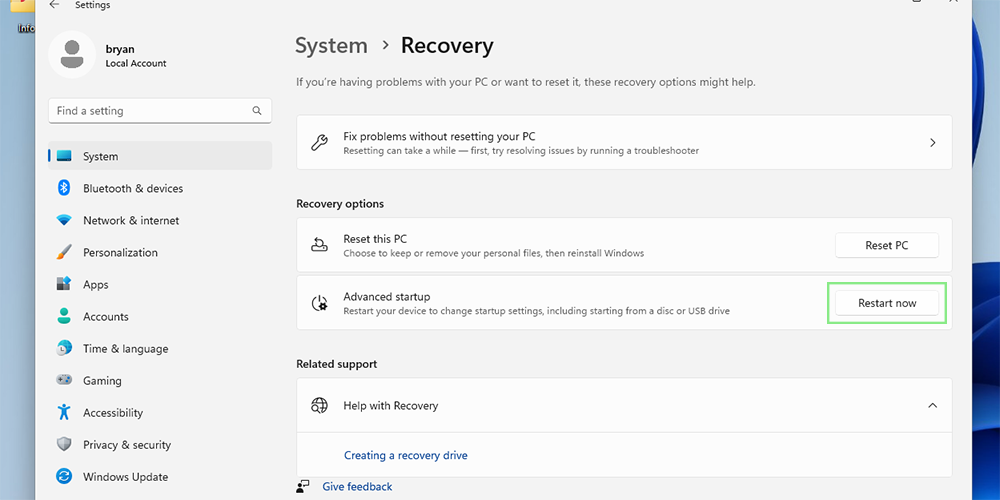
How to Enter Windows 11 Safe Mode: Step-by-Step Methods
Method 1: Shift + Restart (Most User-Friendly)
This method works whether Windows seems responsive or stuck at login:
- Click Start → Power.
- Hold down the Shift key and click Restart.
- Your PC will reboot into the recovery environment.
- Select Troubleshoot → Advanced options → Startup Settings → Restart.
- After reboot, press:
- 4 for Standard Safe Mode,
- 5 for Safe Mode with Networking,
- 6 for Command Prompt mode.
This approach avoids typing commands manually and works consistently unless system files are severely corrupted.
Method 2: Using System Configuration (msconfig) for Scheduled Boot
If you want your PC to boot into safe mode repeatedly (for extended troubleshooting):
- Press Win + R, type
msconfig, and press Enter. - Go to the Boot tab.
- Under Boot options, check Safe boot.
- Select:
- Minimal (Standard),
- Network, or
- Alternate shell (Command Prompt).
- Click OK and restart.
Warning: Forgetting to uncheck "Safe boot" will cause your PC to start in safe mode every time until manually reversed, a trap I’ve seen many users fall into (composite example below).
To exit safe mode after using this method, repeat these steps and uncheck “Safe boot.”
Method 3: Force Recovery Environment When Normal Boot Fails
When Windows refuses to load normally:
- Power on your PC.
- As soon as the Windows logo appears, hold down power button until it shuts off.
- Repeat this forced shutdown twice more.
- On next startup, WinRE (Windows Recovery Environment) should appear automatically.
- work through Troubleshoot → Advanced options → Startup Settings → Restart.
- Choose desired safe mode option using number keys as above.
This brute-force approach triggers recovery tools on systems stuck at boot due to critical errors but may not work if hardware faults dominate. Safe Mode is often the way in when you face stop code CRITICAL PROCESS DIED 0xEF on Windows 11. Safe Mode is often the way in when security update KB5077181 causes boot loops.
What You’ll See Inside Safe Mode
Expect a stripped-down desktop:
- Basic low-resolution graphics without custom wallpapers
- Simple “Safe Mode” watermark in corners
- Limited device support, wireless keyboards/mice might not work; switch temporarily to wired devices if needed
- Applications relying on GPU acceleration or special services will often fail to open, not because they’re broken but because those components don’t load here
Think of this minimal setup as a barebones test bench rather than a full-featured workspace, it’s meant for fixing problems, not daily use.
Common Pitfalls When Using Safe Mode and How To Avoid Them
- Mistaking blank/low-res screen as failure: The minimal appearance is normal; don’t panic if things look sparse.
- Forgetting backups before making changes: Even though fewer processes run in safe mode, deleting system files recklessly can worsen problems, always back up important data first.
- Using standard safe mode instead of networking when downloads are necessary: Confirm which variant fits your needs before proceeding.
- Getting stuck in safe mode after using msconfig: Always double-check “Safe boot” is off before rebooting normally.
- Device input not working: Try switching USB ports or swapping wireless peripherals for wired ones temporarily during troubleshooting.
Practical Tips To Use Windows 11 Safe Mode Effectively
Below are tactical strategies drawn from troubleshooting hundreds of cases:
- Start with standard safe mode when suspecting driver-related crashes after updates, uninstall recent drivers via Device Manager before rebooting normally.
- Use safe mode with networking when needing updated malware scanners like Malwarebytes during cleanup, many threats won’t load here but scanners can update safely online.
- For command-line repairs such as
sfc /scannow(checks file integrity) orchkdsk(disk health), use Command Prompt safe mode; it avoids GUI-related interruptions that sometimes block these utilities. - Employ System Restore points within safe mode if available, this allows rollback of problematic changes without full reinstallations.
- Explore offline antivirus scans designed specifically for safe mode environments; some malware hides entirely during normal operation but cannot resist deep offline scans here.
Composite Example: Rescuing an Unbootable Laptop Using Safe Mode
A client’s laptop began crashing immediately post driver update and had no restore points set up, a situation I’ve encountered often enough that it taught me key lessons about preparedness (composite example).
Steps taken:
- Forced entry into recovery environment by interrupting boot three times.
- Selected “Safe Mode with Networking” so we could download updated security tools safely from Microsoft servers.
- In Device Manager inside safe mode, uninstalled recently updated video driver identified as culprit causing crashes.
- Ran Malwarebytes scan which found multiple potentially unwanted programs slowing startup significantly.
- Rebooted normally; machine was stable again without losing personal files or reinstalling OS.
This example shows how combining forced recovery access with appropriate safe mode flavor lets you regain control over a nearly unusable device quickly.
Troubleshooting Common Issues Accessing Or Using Safe Mode
| Issue | Cause | Solution |
|---|---|---|
| Shift + Restart doesn’t bring up menu | Group policies disable shortcut; corruption | Use forced recovery by interrupting power on boot cycle |
| Stuck in reboot loop into safe mode | “Safe boot” checked unintentionally in msconfig | Open msconfig again in safe mode; uncheck “Safe boot” |
| Network missing despite selecting networking | VPN/firewalls blocking connections | Disable VPN/firewall temporarily within safe mode |
| Keyboard/mouse unresponsive | USB controller drivers not loading | Switch ports; swap wireless devices for wired ones |
If none of these fixes work reliably, consider booting from official installation media USB drive for offline repairs beyond safe mode’s scope.
Quick Reference Action Plan For Using Windows 11 Safe Mode Confidently
- Identify symptoms indicating need for safe mode:
- Persistent startup crashes
- Blue screens linked to device drivers
- Suspected malware causing instability
- Attempt Shift + Restart method unless system completely frozen:
- Follow prompts through recovery menu → Startup Settings → select variant
- Choose variant based on task:
- No internet needed? Select Standard (4)
- Need downloads? Select Networking enabled (5)
- Running command line tools? Select Command Prompt (6)
- While in safe mode:
- Remove recent faulty updates/drivers via Device Manager
- Run trusted anti-malware scans offline where possible
- Apply System Restore if recent changes caused issues
- Exit safely by undoing scheduled boots via msconfig if used:
- Uncheck “Safe boot,” reboot normally
- Observe behavior after exiting:
- If issues persist repeat diagnostics deeper using logs (
event viewer) or repair commands (DISM)
Next Steps Beyond Basic Safe Mode Mastery
When comfortable entering safe modes at will:
-
Learn core repair commands inside command prompt:
-
sfc /scannowchecks system files integrity -
DISM /Online /Cleanup-image /Restorehealthrepairs corrupted images remotely
These can fix subtle corruptions missed by surface-level fixes. -
Regularly create System Restore points proactively before major updates/installations as rollback safety nets rather than waiting until emergency hits
-
Prepare a USB recovery drive ahead of time enabling full offline restores even when PC won’t start at all
-
Review Event Viewer logs post-recovery looking for patterns invisible during simple symptom checks, this reveals root causes buried deep inside system operations
These skills shift troubleshooting from reactive guesswork toward confident problem solving rooted in evidence and control over your machine’s health state.
Windows 11’s Safe Mode remains an indispensable tool, not just an old trick but an ongoing solution whenever your system falters unexpectedly under pressure. Safe Mode is also a useful test when you need to fix screen flickering on Windows 11.
Keep this guide handy as your reference point, not as an intimidating manual but as a friendly companion helping turn frustrating failures into manageable challenges with clear steps forward backed by practical experience.
Additional Resources & Further Reading
For detailed visuals or Microsoft’s official instructions visit:
Windows 11 Recovery Options
With patience and these methods at hand, tackling even stubborn Windows troubles becomes less stressful, and more effective, every time you need it most.